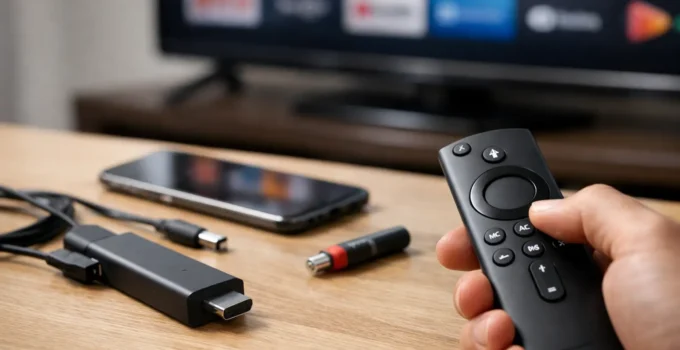
A Fire TV Stick can be working perfectly while its remote suddenly refuses to respond. The menu will not move, the volume buttons do nothing, or the Alexa button stops listening. Before replacing it, you can usually fix Fire Stick remote problems with a few checks that take less than 10 minutes.
The key is to identify whether the problem is power, pairing, Bluetooth range, or control settings. Fire TV remotes do not use a traditional infrared signal for most commands, so pointing the remote directly at the TV will not solve every issue.
Start With the Batteries and Remote Position
Weak batteries are the most common reason a Fire Stick remote becomes slow, unreliable, or completely unresponsive. A remote may still light up or work occasionally with low batteries, which makes this problem easy to miss.
Open the battery cover and replace both batteries with fresh alkaline batteries. Make sure the positive and negative ends match the symbols inside the compartment. Avoid mixing an old battery with a new one, or using rechargeable batteries that may not provide enough steady power.
After installing new batteries, wait a few seconds and try the Home button. If it works only when you are very close to the Fire TV Stick, remove obstructions around the streaming device and move closer temporarily. Bluetooth range can be affected when the Fire TV Stick is squeezed behind a TV, surrounded by cables, or placed near wireless equipment.
If your TV has a crowded HDMI area, an HDMI extender can help position the Fire TV Stick away from the back of the television. This is especially useful with wall-mounted TVs, where the TV itself can reduce wireless signal strength.
Restart the Fire TV Stick Before You Re-Pair
A frozen Fire TV interface can look exactly like a broken remote. Restarting the streaming device clears temporary software issues and gives the remote a fresh connection attempt.
If the remote still responds, press and hold the Select button and Play/Pause button together for about five seconds. The Fire TV Stick should begin restarting. If the remote does not respond at all, unplug the Fire TV Stick from power, wait 60 seconds, and plug it back in.
Do not just switch off the TV. The Fire TV Stick often receives power through the TV USB port or its own wall adapter, and it needs to lose power fully to restart. Once the Fire TV home screen returns, test the directional ring, Select button, and Home button.
How to Fix Fire Stick Remote Pairing Issues
Your Fire TV remote normally pairs automatically during setup, but it can lose its connection after a reset, an update, or a battery change. Pairing it again is simple in most cases.
Hold the Home button for around 10 seconds while standing near the Fire TV Stick. Watch the screen for a message confirming that the remote has connected. It may take up to a minute for the pairing request to appear.
If there is no response, use the Fire TV app on an iPhone or Android phone as a temporary remote. Your phone and Fire TV Stick must be connected to the same Wi-Fi network. Open the app, select your Fire TV device, and enter the code shown on the television. You can then navigate to Settings, Controllers and Bluetooth Devices, Amazon Fire TV Remotes, and Add New Remote.
This app method is particularly helpful if you have more than one Fire TV remote nearby. A remote from another room may connect to the wrong Fire TV Stick, while the app lets you manage the exact device on screen.
Reset a Remote That Will Not Pair
A reset is worth trying when fresh batteries and manual pairing do not work. The button sequence differs slightly by remote generation, but this process works with many Alexa Voice Remote models.
First, unplug the Fire TV Stick from power and wait for one minute. On the remote, press and hold the Left button, Menu button, and Back button at the same time for 12 seconds. Release the buttons, wait five seconds, then remove the batteries.
Plug the Fire TV Stick back in. When the screen says it cannot detect a remote, insert the batteries and hold Home for 10 seconds. Give the device up to a minute to pair.
If your remote has a different button layout or this sequence does not help, check the model name printed inside the battery compartment. Older Fire TV remotes can use a different reset process. It is better to confirm the model than repeatedly pressing buttons and accidentally changing TV settings.
Fix Volume, Power, and Input Buttons Separately
The navigation buttons control the Fire TV Stick through Bluetooth. The Power, Volume, and Input buttons usually control your TV or soundbar through infrared or HDMI-CEC. That means it is possible for the remote to browse Fire TV normally while the TV volume controls fail.
Start by checking that nothing is blocking the front of your TV or soundbar. Then open Fire TV Settings, choose Equipment Control, and select Manage Equipment. Confirm that the correct TV brand and audio device are listed.
If the brand is wrong, or the controls stopped working after you changed televisions, select the device and choose Change TV or Change Equipment. Fire TV will guide you through testing volume and power commands. Follow the on-screen prompts slowly, because choosing the wrong result can save an incorrect infrared profile.
HDMI-CEC can also affect power and input control. This setting has different names depending on the TV brand, such as Anynet+, Bravia Sync, SimpLink, or CEC. Turning it on can allow the Fire TV Stick to switch inputs and power compatible equipment more reliably. However, CEC is not perfect on every TV, so do not assume it is the cause if only volume buttons have failed.
Check for Physical Damage and Sticky Buttons
A remote that has been dropped, exposed to a spill, or used heavily can develop stuck buttons. Press each button a few times and check whether one feels softer, harder, or permanently pressed down. A stuck button can prevent other commands from registering properly.
Remove the batteries before cleaning. Use a dry microfiber cloth around the button edges. For surface grime, lightly dampen a cloth with isopropyl alcohol, not water, and avoid letting liquid enter the remote. Do not spray cleaner directly on it.
If the battery contacts look corroded, gently clean them with a dry cotton swab. Severe corrosion, a cracked case, or a remote that became unresponsive after liquid exposure usually points to hardware damage rather than a pairing problem.
When Replacing the Remote Makes Sense
Replacement is sensible after you have tried fresh batteries, a Fire TV Stick restart, pairing, and a reset. It is also the practical choice when buttons are physically damaged or the remote disconnects repeatedly despite working at close range.
Choose a remote that is specifically compatible with your Fire TV Stick model. Not every Fire TV remote supports every generation of Fire TV hardware, and basic third-party remotes may not include Alexa voice controls, TV volume setup, or dedicated app buttons. A compatible Alexa Voice Remote costs more than the simplest option, but it is usually easier to set up and offers the full feature set.
Until a replacement arrives, the Fire TV app is a reliable backup. It also makes text entry much easier than using the on-screen keyboard with a physical remote.
A remote problem is frustrating because it stops everything at once, but it rarely means your Fire TV Stick has failed. Start with batteries and pairing, separate Fire TV controls from TV controls, and replace the remote only after those quick checks have ruled out the simple fixes.