How do you know if your Mac is charging? Look at the battery icon in the menu bar: it shows a small lightning bolt while power is going into the battery. Click it and the menu names the power source and the time left until full. If your MacBook has a MagSafe cable, the light on the connector glows amber while charging and green when full.
Below are 5 ways to check, including when the lid is closed or the screen is off, what each charging message means, and 9 fixes to try, in order, when the battery is not filling up.
Steps checked against Apple’s support pages on November 26, 2026. Menu names are from macOS 27 and macOS Tahoe 26, with the older path noted where it differs.
How Do You Know If Your Mac Is Charging? 5 Signs
1. The battery icon in the menu bar
The battery icon sits at the top right of the screen. With a charger connected and power flowing, a lightning bolt appears on it. This is the fastest answer to “is my MacBook charging?” while the screen is on.
No battery icon? Add it:
- macOS 27 and macOS Tahoe 26: open System Settings > Menu Bar and select Battery. Click Battery Options and turn on Show Percentage to see the number too.
- macOS Sequoia 15: open System Settings > Control Center, go to Battery and turn on Show in Menu Bar.
2. The battery status menu
Click the battery icon. Apple’s Mac User Guide says this menu shows the percentage of charge, the current power source, and either that the battery is fully charged or how long until it is full. The time estimate can take a few minutes to appear after you plug in.
If the power source reads as the adapter and a time is counting down, the battery is filling. If you see a message instead, check the table in the next section.
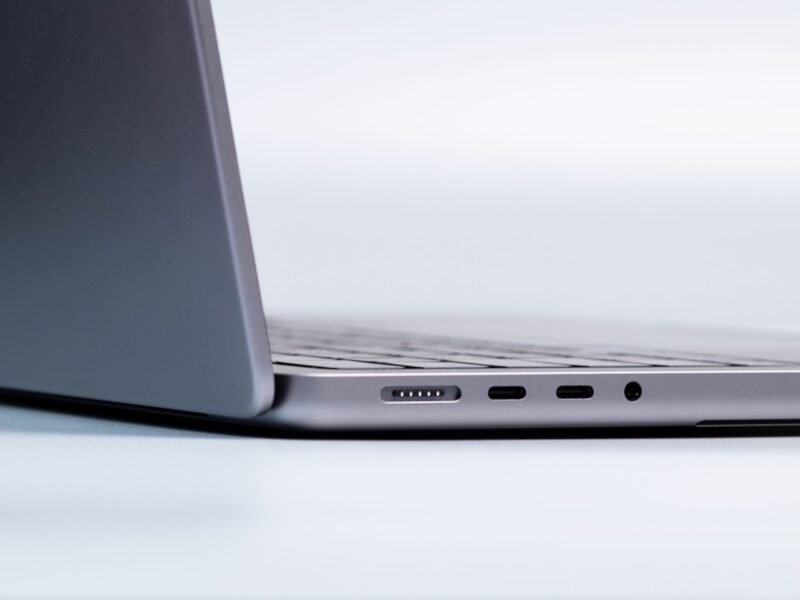
3. The light on the MagSafe connector
This is how to tell if a MacBook is charging when the lid is closed, the screen is asleep or the Mac is shut down. Apple’s charging page gives the light two meanings:
- Amber: charging is underway, or charging is on hold.
- Green: the battery is fully charged.
An amber light that flashes repeatedly on a MagSafe 3 connector can point to a charging problem (fix 7 below). No light at all means no power is reaching the connector.
4. The Battery Level graph
Open System Settings > Battery. The current level and any battery alert are at the top. Under Last 24 Hours, the Battery Level graph shades the periods when the Mac was charging, so you can see whether it charged overnight.
5. System Information
Hold the Option key and choose Apple menu > System Information, then select Power in the sidebar. Scroll to AC Charger Information. The wattage of the connected charger is listed here, which also tells you whether it is strong enough for your model (see the wattage table below).
What the Charging Messages Mean
Several messages in the battery status menu look like faults but are not. This table follows Apple’s wording.
| Message | What it means | What to do |
|---|---|---|
| Charging On Hold | Optimized Battery Charging is delaying the charge past 80%. | Normal. Choose Charge to Full Now in the same menu if you need 100% sooner. |
| Charged to [%] Limit | A Charge Limit is set and the battery has reached it. | Normal. Choose Charge to Full Now, or raise the limit. |
| Slow Charger | The charger delivers fewer watts than your model needs. Shown in macOS Tahoe 26.4 or later. | Use a stronger power adapter and cable (see the wattage table). |
| Not Charging | Charging is paused to protect the battery, the charger is too weak, or the Mac is using more power than the charger supplies. | Often normal near full. If the level keeps falling, work through the fixes below. |
| Service Recommended | The battery holds less charge than when new, or is not working normally. | You can keep using the Mac. Book a battery service if run time bothers you. |
How to Know If a MacBook Air Is Charging Without a Light
Only the MagSafe connector has an indicator light. A plain USB-C charge cable has none, and many Macs charge only that way: MacBook Air models from 2018 through 2021, the MacBook Neo, the 13-inch MacBook Pro (M2, 2022), MacBook Pro models from 2016 to 2020 and the 12-inch MacBook.
On these, wake the Mac and use signs 1 and 2. If the screen stays black, the battery may be fully drained. Apple notes that a Mac left in storage can need about 20 minutes on its power adapter before it will turn on, so give it time before you assume a fault.
Many MacBooks also play a short chime when a charger connects. It is not part of Apple’s charging instructions and you will not hear it with the sound muted, so treat it as a hint, not proof.
Why Isn’t My MacBook Charging When It’s Plugged In?
If you are asking “why isn’t my Mac charging?” with the cable connected, Apple lists three reasons for a “Not Charging” status that are not faults:
- Charging is paused on purpose. To extend battery life, the Mac can stop topping up and let the level fall to 93% or lower before it starts again.
- The charger is too weak. A low-wattage adapter can run the Mac without charging the battery. Apple says the battery then will not charge even when the Mac is asleep or shut down.
- The Mac is working very hard. Video editing software and games can draw more power than the charger supplies, so the level drops while plugged in. Closing the heavy app helps; here is how to force quit an app on a Mac if one is frozen.
Stuck at 80%?
A battery that stops at 80% is a common question on Apple’s support forums, and it is usually a setting, not a fault. Optimized Battery Charging learns your routine and holds the battery at 80% when it expects a long stay on the charger. Charge Limit, on Apple silicon Macs with macOS Tahoe 26.4 or later, caps the charge anywhere from 80% to 100% and only resumes once the level drops more than 5%.
Both live in System Settings > Battery: click the info button next to Charging (or Battery Health on older versions). If both are off and the Mac still stops at 80%, Apple says the battery may be too hot. Our MacBook battery health guide explains when these settings are worth keeping on.
9 Fixes When Your MacBook Won’t Charge
These come from Apple’s troubleshooting pages for USB-C and MagSafe chargers, easiest first.
- Read the message first. Click the battery icon. “Charging On Hold” or “Charged to [%] Limit” means nothing is broken; choose Charge to Full Now.
- Reset the adapter. Unplug the power adapter from the wall, wait 60 seconds and plug it back in. Adapters shut themselves off when they sense electrical noise on the line, which can come from a refrigerator or lights with ballasts on the same circuit.
- Test the outlet. Plug in a lamp to confirm the outlet works, or move to an outlet on a different circuit.
- Restart the Mac. On a Mac with Apple silicon, a restart also resets the power controller. If that fails, shut down, close the lid for 30 seconds, open it and try again. Intel Macs have a separate SMC reset, described on Apple’s SMC page.
- Swap the cable. Some USB-C cables carry data only and cannot charge a laptop. If the MacBook charging wire works only when you wiggle it, stop using it.
- Check the charger’s wattage. Compare the number printed on the adapter with the table below. Any USB-C charger will connect, but one below the recommended wattage charges slowly or not at all.
- Clean the port and connector. Disconnect everything, then wipe the port and the connector with a soft, dry, lint-free cloth. The MagSafe port is magnetic and can pick up metal debris. For a flashing amber light, Apple adds: unplug the adapter from the wall, restart the Mac, reconnect, and try a different MagSafe 3 or USB-C cable.
- Let it cool down. Mac laptops work best at 50° to 95° F (10° to 35° C). A hot battery may stop at 80%, and an adapter buried in bedding or on thick carpet can switch itself off. Move both somewhere ventilated. Heat is also behind some MacBook screen discoloration.
- Update, then test the hardware. Install any macOS update, since Apple says updates can improve how the Mac talks to its power adapter. If nothing changes, run Apple Diagnostics and take the Mac, adapter and cables to an Apple Store or authorized service provider.
Apple’s full checklist is on its page If your Mac battery won’t charge. If the battery charges but drains quickly, some of the steps in our guide to speeding up a slow MacBook also cut power use. Phone giving you the same trouble? The causes are different, so see why an iPhone isn’t charging.
How Many Watts Is a MacBook Charger?
It depends on the model. These are the power adapters Apple recommends; a weaker one is the usual cause of “Slow Charger” and “Not Charging”.
| Mac laptop | Recommended Apple adapter | Cable |
|---|---|---|
| MacBook Neo | 20W | USB-C |
| MacBook Air, 2018 through 2021 | 30W | USB-C |
| MacBook Air, 2022 or later | 30W (13-inch only), 35W dual-port, 67W or 70W | USB-C to MagSafe 3, or USB-C |
| 13-inch MacBook Pro, 2016 or later | 61W | USB-C |
| 14-inch MacBook Pro, 2021 or later | 67W, 70W or 96W | USB-C to MagSafe 3, or USB-C |
| 15-inch MacBook Pro, 2016 or later | 87W | USB-C |
| 16-inch MacBook Pro, 2019 | 96W | USB-C |
| 16-inch MacBook Pro, 2021 or later | 140W | USB-C to MagSafe 3, or USB-C |
Source: Apple’s page Use a power adapter with your Mac. An old MacBook charger with a MagSafe or MagSafe 2 plug does not fit a MagSafe 3 port, and Apple’s converter does not change that.
Quick Answers
How do you know if your Mac is charging when it’s turned off? With a MagSafe cable, the connector light is amber while charging and green when full. With a USB-C cable there is no light, so turn the Mac on and look for the lightning bolt on the battery icon.
Can you charge a MacBook with USB-C? Yes, if it has USB-C ports. Apple says any USB-C power adapter or display that supports USB Power Delivery will work, though one below the recommended wattage charges more slowly.
Can I plug multiple chargers into my MacBook to charge faster? No. Apple says a Mac charges over only one port at a time and picks the source that provides the most power.
How long does it take to charge a MacBook? The battery menu shows the estimated time to full. With a fast-charge adapter, a MacBook Air from 2022 or later, or a 14- or 16-inch MacBook Pro from 2021 or later, reaches 50% in around 30 minutes, according to Apple.
Is it bad if my Mac says “Not Charging” at 95%? No. Macs pause charging near full to protect the battery and may let it fall to 93% or lower before charging again.
How to know if a MacBook is charging if the icon has no bolt? Open the battery menu and read the power source line and any message. A weak charger can power the Mac without charging the battery.