If you are asking “why isn’t my iPhone charging?”, the cause is usually outside the phone: a worn cable, a weak or dead power source, or lint packed into the charging port. Software is next, then heat, liquid in the port, or a charge limit that stops at 80 percent on purpose. A failed battery or port is the least common reason.
This guide walks through 9 fixes in the order that saves you the most time, explains each alert your iPhone can show, and tells you when it is time to book a repair. Steps and settings were checked against Apple’s support pages on November 23, 2026.
Why Is My iPhone Not Charging? The Usual Causes
Match what you see to the likely cause, then jump to that fix.
| What you see | Likely cause | Go to |
|---|---|---|
| Nothing happens when you plug in | Cable, adapter, outlet or a blocked port | Fixes 1 to 4 |
| Black screen, or only a battery icon | Battery fully drained, or iOS has frozen | Fix 5 |
| Stops at 80 percent | Optimized Battery Charging, a charge limit, or heat | The 80 percent section |
| “Charging On Hold” | The iPhone is too hot or too cold | Fix 7 |
| “Liquid Detected” or “Charging Not Available” | Moisture in the port or on the cable | Fix 8 |
| “Accessory Not Supported” or “Incompatible Charger” | Dirty port, faulty or uncertified accessory | Fixes 1, 3 and 6 |
| “Slow Charger” | Low-wattage charger; nothing is broken | The slow charging section |
9 Fixes When Your iPhone Won’t Charge
Apple’s own advice in its won’t-charge guide is to try again after each step, so you know which one worked.
1. Check the cable and adapter for damage
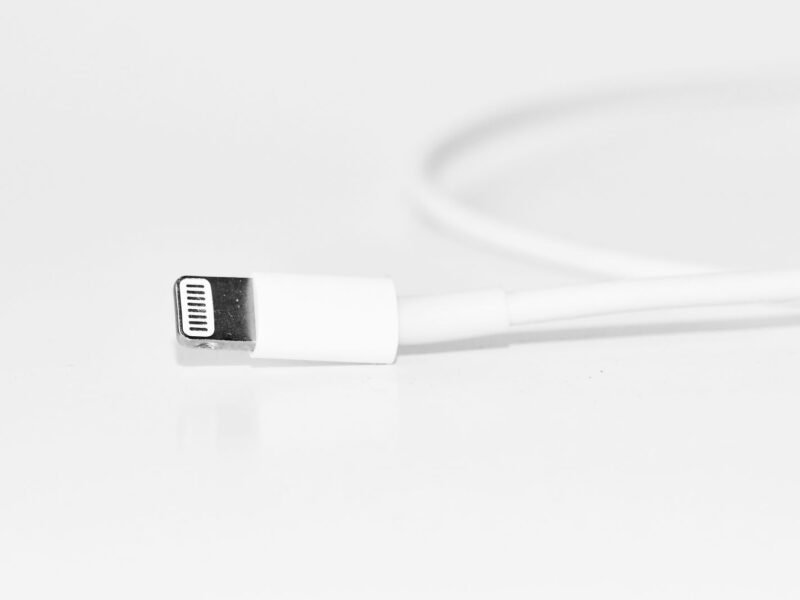
Look along the cable for fraying, kinks and exposed wire, and check the adapter for bent prongs. Apple says not to use damaged accessories at all. Then borrow a cable and adapter you know work with another phone. If the borrowed set charges your iPhone, you only need a new cable.
2. Change the power source
Plug the adapter straight into a wall outlet and push every connection in firmly: cable to adapter, adapter to wall. Try a second outlet. Skip USB hubs and car ports while you are troubleshooting, because Apple notes they might charge slower than a dedicated charger.
3. Clean the charging port
Pocket lint is the classic reason a cable feels loose or only charges at a certain angle. Apple’s guide tells you to remove any debris from the port and then plug the cable in firmly. The full method is in the cleaning section below.
4. Restart your iPhone
A restart can clear a software glitch that is blocking charging, and it is the second step on Apple’s list. Turn the iPhone off, wait a few seconds, turn it back on and plug it in again.
5. Leave it for 30 minutes, then force restart
A completely empty battery needs time before the screen shows anything. Apple says to let the device charge for half an hour. If it still won’t turn on, or only shows a battery icon, force a restart with the cable connected:
- iPhone 8 or later, including iPhone SE (2nd generation and later): press and quickly release volume up, press and quickly release volume down, then hold the side button until the Apple logo appears.
- iPhone 7 and 7 Plus: hold the side button and volume down together until the Apple logo appears.
- iPhone 6s or earlier and iPhone SE (1st generation): hold the side (or top) button and the Home button together until the Apple logo appears.
Then give it another half hour on the charger.
6. Update iOS
Charging bugs do happen. In June 2026, Apple released iOS 26.5.1 with a fix for what its release notes called an issue that “may prevent wired charging on iPhone Air and iPhone 17 models when the battery is nearly drained,” as MacRumors reported. If your iPhone stopped charging by cable but a wireless charger still works, use it to get enough power to update.
Go to Settings > General > Software Update. Our iOS 27.2.1 update guide covers what the current release fixes and how to install it.
7. Cool it down (or warm it up)
An iPhone that is too hot or too cold pauses charging to protect the battery. The Lock Screen then says “Charging On Hold. Charging will resume when iPhone returns to normal temperature.” Apple designs iPhones for use between 32° and 95° F (0° to 35° C).
Take the phone out of direct sun, off the car dashboard and off the bed, and stop gaming or streaming while it charges. According to Apple’s temperature page, a very cold iPhone might not charge either, so bring it indoors first. You can see whether charging was on hold in Settings > Battery.
8. Deal with a liquid alert properly
iPhone XS, XR and later warn you when the port or cable is wet. You may see “Charging Not Available” or “Liquid Detected in USB-C Connector”. Charging is blocked because, as Apple puts it, the pins can corrode and cause permanent damage.
- Unplug the cable from the iPhone and from the adapter.
- Tap the iPhone gently against your hand with the port facing down.
- Leave it in a dry place with some airflow for at least 30 minutes, then try again.
- If the alert comes back, keep waiting. Apple says it can take up to 24 hours to dry fully.
Do not use a hair dryer, compressed air or rice, and do not push a cotton swab or paper towel into the port. In the meantime, Apple’s liquid-detection page says a wireless charger is still safe to use if the back of the phone is dry. The alert also offers an emergency override, which Apple says is for emergencies only.
If the phone took a real dunking, follow our guide on how to get water out of a phone before you charge it. If the alert shows up when nothing is wet, the cable may be damaged. If it happens with every Apple cable, Apple says the iPhone may need service.
9. Try a different way of charging
This step tells you where the fault is. If a MagSafe or Qi charger works but a cable does not, the port or cable is the problem. If a cable works but wireless does not, look at the charger and case.
For MagSafe, Apple’s MagSafe Charger page says to place the charger on a flat surface clear of metal objects, and to take cards, key fobs and badges out of a wallet case first. If you put the iPhone on the charger before plugging the charger in, lift it off, wait three seconds and put it back.
How to Clean an iPhone Charging Port Safely
Apple tells you to remove debris but does not describe a tool. Repair site iFixit suggests a wooden toothpick, a new toothbrush or another non-conductive tool. A careful approach:
- Turn the iPhone off and unplug everything.
- Shine a light into the port. Lint tends to get packed down at the very back.
- Gently loosen it with a wooden or plastic toothpick and lift it out. Work along the back wall, not across the contacts.
- Plug the cable in. It should now click in fully and sit flush.
Never use a metal pin, paper clip or needle, which can short or scratch the contacts, and keep liquids out of the port. If you can see bent or green, corroded contacts, stop and book a repair.
Why Won’t My Phone Charge Past 80 Percent?
An iPhone that stops at 80 percent is almost always doing it on purpose. There are three reasons, all described in Apple’s page on Charge Limit and Optimized Battery Charging:
- Optimized Battery Charging. The iPhone learns your routine and waits to finish charging past 80 percent until shortly before you usually unplug. A Lock Screen notification says when it will be full. Touch and hold it, then tap Charge Now to skip the wait.
- A charge limit. On iPhone 15 and later, go to Settings > Battery > Charging. You can set a limit from 80 to 100 percent in 5 percent steps. Set it to 100 if you want a full battery.
- Heat. If the battery gets too warm, software can hold charging at 80 percent until it cools.
On iPhone 14 and earlier, the switch is under Settings > Battery > Battery Health & Charging. Apple warns that turning these protections off can wear the battery faster. Our phone battery health guide explains why the limits are worth keeping.
What Does “Slow Charger” Mean on iPhone?
Since iOS 18, the iPhone shows a Slow Charger message on the Lock Screen and in Settings > Battery when a stronger charger would help. Apple is clear that it does not mean anything is wrong with the iPhone or the charger.
According to Apple’s charge speeds page, charging takes longer with a wired charger of 7.5W or less, or a wireless charger under 10W. For faster charging, Apple recommends a USB-C Power Delivery charger, or a MagSafe or Qi2-certified wireless charger.
From iOS 26, the same screen can show Incompatible Charger when a charger is connected but not charging at all. Treat that like a dead cable and go back to fixes 1 and 2. A yellow battery icon is something else again: it means Low Power Mode is on, not that charging has failed.
When to Stop Troubleshooting and Get a Repair
Book service if the iPhone still won’t charge after a force restart and a second half hour on a known-good charger, if the liquid alert appears with every Apple cable, or if the port is visibly damaged. A phone that is swelling or pushing its screen up should not be charged at all.
Start at Apple’s iPhone repair page. Apple’s one-year limited warranty covers manufacturing faults but not accidental damage or a battery worn down by normal use. With AppleCare, Apple replaces the battery at no extra charge once its capacity drops below 80 percent. A factory reset, which some guides recommend, erases your data and is not among the steps Apple lists for charging problems.
Quick Answers
Why is my phone not charging when it is plugged in? Most often the cable, adapter or outlet has failed, or lint in the port stops the plug from seating. Swap each part for one you know works, clean the port, then restart the phone.
Why did my iPhone stop charging at 80 percent? Optimized Battery Charging, a charge limit (iPhone 15 and later) or a warm battery. Check Settings > Battery > Charging, or touch and hold the Lock Screen notification and tap Charge Now.
Can I charge my iPhone when it says liquid detected? Apple says not to charge by cable until the port is dry, which takes at least 30 minutes and up to 24 hours. A wireless charger is fine if the back of the phone is dry.
My phone won’t charge and the screen is black. Is it dead? Not necessarily. Leave it on a wall charger for 30 minutes, force restart it, then charge for another 30 minutes before you assume a hardware fault.
Does a Slow Charger message mean my charger is broken? No. It means a higher-wattage charger would fill the battery faster. The iPhone still charges normally.
Can an iOS update fix charging? Sometimes. iOS 26.5.1 fixed a wired charging bug on iPhone Air and iPhone 17 models, so installing the latest iOS is worth doing before you pay for a repair.