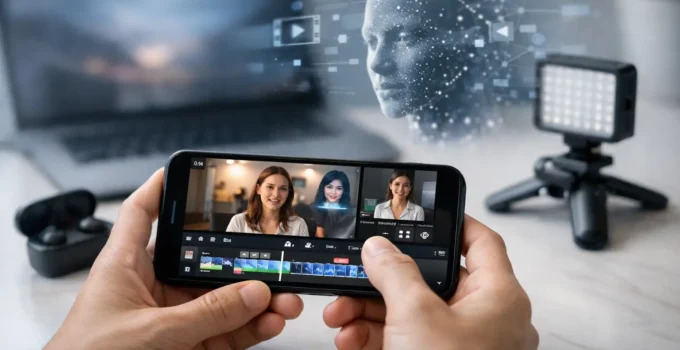
A 45-second video can take longer to edit than it took to record. Finding the right clip, cutting out pauses, adding readable captions, fixing uneven sound, and resizing it for a social platform all add up. That is where AI tools for video editing can make a real difference on an iPhone or Android phone.
The useful tools do not replace good footage or good judgment. They handle repetitive jobs quickly, which leaves you to decide what the video should say, what to keep private, and when an edit looks natural rather than overprocessed.
What AI Video Editing Tools Actually Do
AI features in mobile video apps are often presented as a single magic button. In practice, they work best as smaller helpers built into an editor. A tool may listen to speech and create captions, identify quiet gaps in a recording, keep a face centered in a vertical crop, or reduce background noise.
Some apps can also create a rough first cut from longer footage. For example, they may remove pauses from a talking video, find highlights in several clips, or match cuts to a music beat. These features are helpful for short tutorials, family videos, product clips, and social posts. They are less dependable when a video has several speakers, unusual accents, overlapping voices, or important visual details.
The best approach is to let AI produce a draft, then review every change. A caption can be wrong. A suggested highlight can miss the point. A noise reduction feature can make a voice sound thin if pushed too far.
The Most Useful AI Tools for Video Editing
Automatic captions and subtitle editing
Captions are one of the most practical AI features available on phones. They make videos easier to follow in noisy places, help viewers who watch with sound off, and improve accessibility. Apps such as CapCut, Adobe Express, Canva, and several social media editors can generate captions from spoken audio.
Do not publish auto-generated captions without checking them. Names, technical terms, place names, and words that sound alike are common trouble spots. Also check timing. A caption that appears a second late can make a straightforward video feel poorly edited.
For a short how-to video, keep captions brief and high enough on the screen that they are not hidden by app controls. If you are demonstrating a phone setting, avoid placing text over the menu option viewers need to see.
Silence removal and text-based editing
Talking-head videos often include pauses, repeated starts, and filler words. AI-powered silence removal can shorten these clips in seconds. Text-based editing goes one step further: you edit the transcript, and the app removes the matching portion of the video.
This is especially useful for students recording presentations, small businesses explaining a service, or anyone making smartphone tips for social media. Still, use a light touch. Removing every pause can make a person sound rushed and unnatural. Short pauses give viewers time to absorb an instruction, particularly in tutorials.
Audio cleanup and voice enhancement
Phone microphones have improved, but wind, traffic, air conditioners, and echo can still distract from speech. AI noise reduction can lower these sounds and bring a voice forward. It is one of the few features that can noticeably improve an otherwise usable clip.
There is a trade-off. Strong cleanup can create a watery or robotic sound, especially when the original recording is very noisy. Listen through headphones before exporting. If the voice starts sounding artificial, reduce the effect or use the original audio with a lower level of noise reduction.
For future recordings, AI is not a substitute for basic setup. Move closer to the speaker, record away from traffic when possible, and avoid covering the phone microphone with your hand or case.
Auto reframing and background effects
A horizontal recording does not always fit a vertical platform. Auto reframe tools can track a person and crop the video for a 9:16 format. This is useful when one person is speaking or demonstrating something close to the camera.
It can struggle with groups, fast movement, pets, or a product moving between hands. Watch the full export, not just the first few seconds. An automatic crop may cut off a phone screen, a face, or the main action later in the clip.
Background blur, object removal, and AI-generated backgrounds can also be useful, but they need extra caution. Edges around hair, glasses, fingers, and moving objects may flicker. For a casual post, that may be acceptable. For a work video or a product demonstration, a simple real background usually looks more trustworthy.
Highlight clips and templates
Some apps can scan a longer video and suggest short clips, music, transitions, and a ready-made layout. These features save time when you have many vacation videos or want a quick recap from an event.
The downside is that templates can make unrelated videos look the same. They may also favor fast cuts and effects that do not match your subject. If you are explaining how to change an iPhone or Android setting, clarity beats a flashy transition every time. Use templates as a starting point and remove anything that distracts from the instruction.
How to Choose an AI Video Editor for Your Phone
Before choosing an app, start with the job you need to complete. If you mainly need captions and quick vertical clips, a simple mobile editor may be enough. If you need brand colors, title cards, and reusable layouts, an app focused on design may suit you better. For basic trimming and combining clips, the built-in editor in your phone’s gallery app may be the fastest option.
Check whether the feature you want is included in the free version. Many apps allow a few AI edits at no charge but limit exports, add a watermark, lower output quality, or require credits for advanced generation features. A paid plan makes sense only if you edit often enough to save meaningful time.
Also consider export controls. Look for the ability to choose resolution, frame rate, aspect ratio, and whether the app adds its own branding. For most social clips, 1080p is a sensible choice. Higher resolutions can take more storage, processing time, and mobile data without making a noticeable difference on every platform.
Finally, check how the app handles your footage. Some AI processing happens on the phone, while other features upload clips or audio to cloud servers. Read the privacy options before editing videos that include children, personal documents, client information, or locations you do not want to share.
A Practical Mobile Editing Workflow
You do not need to use every AI feature in one project. A cleaner workflow usually produces a better video:
- Record more than one take if possible, but keep the final message short.
- Trim obvious mistakes manually or with text-based editing.
- Use audio cleanup only as much as needed.
- Generate captions, then correct every important word and name.
- Reframe for the destination platform and check that the subject stays visible.
- Watch the video once with sound and once with sound off before exporting.
This order matters. Captions generated before major cuts may no longer match the final clip. Similarly, adding background music before checking voice clarity can hide audio problems until the last minute.
Common Problems to Watch For
AI editing is fast, but it can introduce errors that are easy to miss on a small screen. Captions may mistranscribe a model name such as Galaxy S24 or iPhone 16. Face tracking can jump to the wrong person. Generative effects can alter logos, text on screens, or small product details.
Be especially careful when editing instructional content. If an AI tool removes a pause and cuts out one tap in a settings menu, viewers may not be able to follow the process. Screen recordings benefit from slower cuts, larger text, and fewer visual effects than entertainment-focused videos.
Battery life and storage are practical concerns too. AI effects, 4K source clips, and longer exports can heat up a phone and use several gigabytes of space. Keep your device charged, close unused apps, and make room before starting a larger project. If an editor repeatedly crashes, try working with shorter clips or lowering the export resolution.
Are AI Editing Features Worth Using?
For most phone users, yes, as long as the features solve a specific problem. Automatic captions, quick audio cleanup, and smart cropping can save enough time to justify using an AI editor. More experimental features, such as fully generated scenes or heavy face effects, are optional and may not suit every video.
A good edit should make the viewer notice the message, not the software. Use AI to remove the tedious parts, keep control of the final choices, and give yourself a minute to review the result before you share it.