An app asking for your location while you are checking the weather makes sense. A flashlight app asking for your contacts usually does not. Knowing how to change iPhone app permissions lets you decide what information an app can use, rather than accepting every request as it appears.
Apple gives you detailed controls for camera, microphone, photos, location, contacts, Bluetooth, notifications, and more. The right settings depend on what an app does and how you use it, but a quick permissions review can reduce unnecessary data sharing without making your favorite apps frustrating to use.
How to Change iPhone App Permissions in Settings
The main place to manage permissions is the Settings app. Open Settings, then scroll down and tap the name of the app you want to review. You will see the permissions that app has requested, along with controls to allow, limit, or deny access.
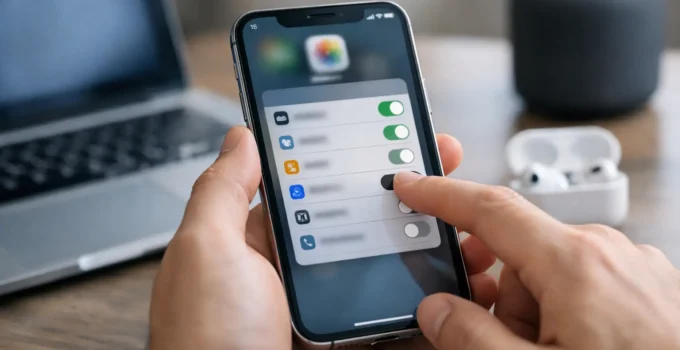
For example, you may see toggles for Contacts, Photos, Camera, Microphone, Bluetooth, Cellular Data, and Notifications. Turning a toggle off removes that permission immediately. The app may continue working, work with fewer features, or ask for access again when you use a feature that requires it.
This per-app page is usually the fastest option when one app is bothering you with prompts or you are unsure why it has access to something. If you want to inspect a single permission across every installed app, use the category-based controls instead.
Review Permissions by Category
Go to Settings > Privacy & Security to see permissions grouped by the type of data or hardware they control. This approach is useful for checking which apps can access sensitive information without opening every app one at a time.
Tap a category such as Location Services, Photos, Camera, Microphone, Contacts, or Calendars. Your iPhone will display the apps that have requested that type of access. Select an app to change its setting.
A few categories deserve special attention:
- Location Services can reveal where you are and where you have been. Many apps only need your location while you are actively using them.
- Photos may let you choose between no access, selected photos, or full library access. Selected Photos is a practical middle ground for many social, shopping, and editing apps.
- Camera and Microphone should generally be enabled only for apps that genuinely use them, such as video calling, messaging, scanning, or photo tools.
- Contacts, Calendars, and Reminders can expose personal details about you and other people. Give access only when the feature is useful to you.
Not every iPhone will show exactly the same list. Available controls can vary by iOS version, your installed apps, and the capabilities of your iPhone.
Set Better Location Access
Location is one of the most useful and most sensitive permissions. Navigate to Settings > Privacy & Security > Location Services, then choose an app. You may see choices including Never, Ask Next Time Or When I Share, While Using the App, and sometimes Always.
For most apps, While Using the App is the sensible choice. It allows a map app to guide you, a weather app to show local conditions, or a ride-hailing app to find your pickup point, without granting ongoing background access.
Choose Always only when background location is central to the app’s purpose. Safety apps, location-sharing tools, and certain fitness trackers may need it. Even then, consider whether you use that feature often enough to justify continuous access.
You can also turn Precise Location off for individual apps. With Precise Location disabled, the app gets an approximate area rather than your exact position. Local news, retail, restaurant, and weather apps often work perfectly well with approximate location. Navigation and emergency-related apps are better candidates for precise location.
Limit Photo Library Access Instead of Allowing Everything
When an app asks to access photos, many users tap Allow without checking the options. On newer versions of iOS, you can often give an app access to Selected Photos rather than your entire library.
To change this later, open Settings > Privacy & Security > Photos and select the app. If the app has limited access, you can edit the selected images from that screen. This is useful when you want to upload a profile picture or share a document but do not want an app browsing every image in your library.
Full access may still make sense for a photo backup service or an editor you use regularly. The trade-off is convenience versus exposure. A one-time shopping app does not usually need the same access as the app you use to organize years of family photos.
Understand What Happens When You Turn a Permission Off
Removing a permission does not delete the app or necessarily erase information it already collected. It simply stops future access through that iPhone permission. If you previously uploaded a photo, shared a contact, or created an account, that data may still be stored by the app’s service under its own privacy policy.
Some apps will also lose features after a permission is denied. A messaging app cannot send voice notes without microphone access, and a banking app may not be able to deposit checks without camera access. That is not automatically a warning sign. The key question is whether the requested access matches the feature you are trying to use.
If an app stops working after you change a setting, return to its page in Settings and re-enable only the permission it needs. You do not have to give every permission back just because one feature requires access.
Check App Tracking Permissions Separately
App permissions and app tracking are related to privacy, but they are not the same setting. A camera permission lets an app use your camera. Tracking permission concerns whether an app can track your activity across other companies’ apps and websites for advertising or measurement.
To review tracking choices, go to Settings > Privacy & Security > Tracking. You can turn off tracking for individual apps or disable Allow Apps to Request to Track entirely. Disabling requests means new apps cannot ask for tracking permission.
This setting will not prevent all advertising or make an app anonymous. Apps can still collect information you provide directly and data needed to run their services. It does, however, limit a specific form of cross-app and cross-site tracking.
Use App Privacy Reports for a Closer Look
If you want more context than a simple on-or-off switch, check Settings > Privacy & Security > App Privacy Report. Once enabled, this feature can show how often apps access permissions such as location, camera, microphone, contacts, and photos. It can also provide information about network activity.
The report is most helpful when you notice unexpected behavior. For instance, a basic utility app repeatedly using location or microphone access may be worth investigating. First check whether its feature set explains the activity, then remove permissions or delete the app if the access does not make sense.
Do not treat every entry as proof that an app is doing something harmful. Some apps check access in the background or use a permission for a legitimate feature. The report gives you a reason to ask better questions, not a reason to panic.
A Simple Permission Review Routine
You do not need to audit your iPhone every day. Reviewing permissions after installing a new app, after a major iOS update, or every few months is enough for most people. Start with Location Services, Photos, Camera, Microphone, and Contacts, since these are usually the most personal categories.
Be especially careful with apps you no longer use. Deleting an unused app is often cleaner than keeping it installed with restricted permissions. Before deleting, make sure any files, subscriptions, or account information you need are saved elsewhere.
A good rule is simple: allow access when it clearly supports a feature you want, limit it when iOS offers a practical middle option, and deny it when the request feels unrelated. Your iPhone works best when its permissions reflect how you actually use your apps, not what every app would prefer to collect.