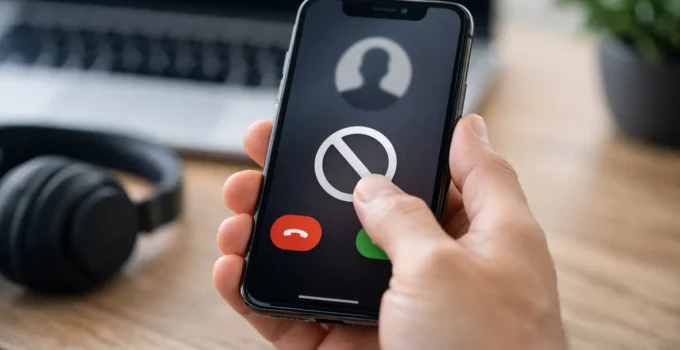
A number does not need to be saved in your Contacts app before it can interrupt your day. Whether it is a persistent spam caller, an unwanted text thread, or someone you simply do not want to hear from, knowing how to block iPhone contacts gives you a quick way to take back control. Apple lets you block people from several built-in apps, and the block applies across more places than many users expect.
Blocking is private. Your iPhone does not alert the person that you blocked them, and you can reverse the decision whenever you need to.
What Happens When You Block Someone on iPhone?
When you block a phone number or contact, that person can no longer call you, send you standard text messages, start a FaceTime call, or email you through the address you blocked in the Mail app. Calls may still appear to go through on the caller’s side, but your iPhone will not ring or show a normal incoming-call alert.
Their messages are not delivered to you. They also will not receive a notice saying they have been blocked. That is useful for privacy, but it means the person may eventually guess what happened if every call goes unanswered.
There are a few limits. Blocking a number does not stop someone from reaching you through a different phone number, email address, social media account, or a third-party messaging app. Blocking also does not remove an existing contact from your address book. It only prevents communication through Apple’s supported calling, messaging, FaceTime, and mail channels.
How to Block iPhone Contacts From the Phone App
The Phone app is usually the fastest option after a call. You can block a saved contact or an unknown number directly from your recent call list.
Open the Phone app and select Recents. Find the caller you want to block, then tap the information button beside their name or number. Scroll down and choose Block this Caller, then confirm the choice.
If the person is already saved in Contacts, open the Phone app, tap Contacts, and select their name. Scroll to the bottom of their contact card and tap Block this Caller. The same option is available if you open the contact through the standalone Contacts app.
This approach is especially handy for spam calls because you do not have to create a contact first. After blocking, the number will remain visible in your recent calls, but future calls from it will not come through normally.
Block a Contact While They Are Calling
If an unwanted call is coming in, you can decline it, then open Recents and use the information button to block the number. You generally cannot complete the block from the incoming call screen itself, so declining the call first is the practical route.
For a recurring telemarketer, consider reporting the number through your carrier’s spam-reporting tools as well. Blocking protects your own phone, while reporting can help carriers identify patterns of abusive calling.
How to Block an iPhone Contact in Messages
Unwanted messages can be more disruptive than calls because they stay in view until you deal with them. In the Messages app, open the conversation from the person or number you want to block. Tap their name, phone number, or profile image at the top of the screen.
From there, tap Info if it appears, scroll down, and select Block this Caller. Confirm to finish.
For a suspicious text from an unknown sender, avoid tapping links or replying before you block it. Replies can confirm that your number is active, which may lead to more spam. If iPhone shows a Report Junk option beneath a message from an unknown sender, you can use it before deleting the conversation.
Blocking one participant does not remove you from a group message. In a group iMessage thread, you may still see messages from other participants. If the conversation is no longer useful, you can leave it when every participant uses iMessage, or mute alerts by opening the group details and selecting Hide Alerts.
Block FaceTime Calls and Email Senders
FaceTime blocks work much like Phone and Messages blocks. Open FaceTime, find the person in your recent calls, tap the information button, scroll down, and choose Block this Caller. You can also open a saved contact and use the block option on the contact card.
For unwanted email, open the message in the Mail app. Tap the sender’s name near the top, then choose Block this Contact when the option is available. Mail handling can vary slightly depending on your email provider and iOS version, but blocked senders are typically moved to the Trash rather than appearing in your inbox.
Email blocking is helpful for repeat nuisance messages, but it is not a complete anti-phishing tool. Scammers often rotate email addresses. Mark suspicious messages as junk, do not open attachments, and do not share verification codes or account details in response to an unexpected email.
Find Your Blocked Contacts List
If you want to review everyone you have blocked, go to Settings, then open Apps and select Phone. Tap Blocked Contacts to see the list. On some iPhone software versions, you may find the relevant controls directly under Phone, Messages, FaceTime, or Mail settings instead.
This screen is useful when you blocked a number months ago and cannot remember why, or when a legitimate contact says they have been unable to reach you. Each blocked entry may show a phone number, email address, or contact name.
A blocked contact can have more than one way to reach you. For example, you may block their phone number but not an email address associated with the same person. Check the entries carefully if you want to block or restore every communication method.
How to Unblock a Contact on iPhone
People change numbers, misunderstandings happen, and a number may have been blocked by mistake. To unblock someone, open their contact card and scroll to the bottom. Tap Unblock this Caller.
You can also go to the Blocked Contacts list in Settings. Swipe left on the entry and tap Unblock, or tap Edit to remove multiple blocked contacts. Once unblocked, new calls and messages can reach you again. Messages and calls sent while the person was blocked will not suddenly appear afterward.
If you only need a break from someone rather than a full block, silencing notifications can be the better choice. You can hide alerts for a single Messages conversation, use a Focus mode during work or sleep, or enable Silence Unknown Callers to send calls from unsaved numbers to voicemail. These options reduce interruptions without permanently cutting off communication.
Blocking Contacts vs. Silencing Unknown Callers
Blocking is precise. It works best when you know the exact person or number you want to stop. Silence Unknown Callers is broader: it sends calls from numbers not saved in your contacts, recent outgoing calls, or Siri suggestions to voicemail. Legitimate calls from a doctor’s office, delivery driver, school, or new client can be silenced too.
To use that feature, open Settings, go to Apps, select Phone, and choose Silence Unknown Callers. It is a useful spam-control setting, but it is not ideal if you regularly expect important calls from unfamiliar numbers.
You can also use Focus modes to limit who can call or message at specific times. For example, a Sleep Focus can allow family members while muting everything else. That is often more flexible than blocking people you may need to hear from later.
A Quick Privacy Check Before You Block
If an unwanted caller seems threatening, abusive, or fraudulent, save evidence before deleting anything. Screenshots of messages, call timestamps, voicemails, and email headers can be useful if you need to report harassment to your carrier, an employer, a school, or local law enforcement.
For immediate danger, contact emergency services rather than relying on a phone block. Blocking stops routine communication from reaching your device, but it is not a substitute for safety planning or official support.
Your iPhone gives you several ways to manage interruptions, so use the least restrictive one that solves the problem. Block repeat spam and unwanted contacts with confidence, and use notification controls when you simply need some quiet without closing the door completely.