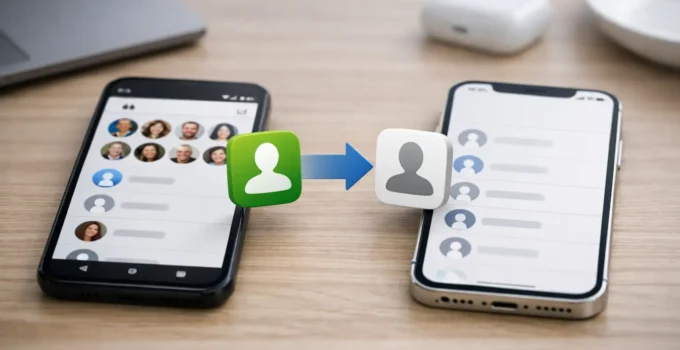
A new iPhone can feel ready to use until you open Phone or Messages and realize every important number is still on your old Android. The good news is that transferring contacts from Android to iPhone is usually quick, and you have more than one reliable option. The best choice depends on whether your iPhone is still being set up, where your Android contacts are stored, and whether you want to keep using Google on your new phone.
Before moving anything, spend a minute checking your Android contacts. Open the Contacts app and look for entries saved to your Google account, your phone storage, or your SIM card. Google contacts are the easiest to bring over and keep updated. Contacts saved only on the device may need to be exported first.
Transfer Contacts From Android to iPhone With Google
For most people, adding the same Google account to the iPhone is the simplest way to transfer contacts Android to iPhone. It is especially useful if you already use Gmail, Google Calendar, or Google Photos. Instead of making a one-time copy, this method syncs your Google contacts to the iPhone.
On your Android phone, open the Contacts app and confirm that your contacts are syncing with Google. Depending on the phone, tap your profile picture or open Settings, then look for a Google account and a contact sync option. You can also check by opening the Google Contacts app or viewing your contacts through your Google account on another device. If the names appear there, they are safely stored in Google.
Next, on the iPhone, open Settings, tap Apps, then Contacts. Choose Contacts Accounts, tap Add Account, and select Google. Sign in with the same Google account you used on Android. When iPhone asks what you want to sync, make sure Contacts is turned on.
Return to the Contacts app and give it a few moments. Your contacts should begin appearing automatically. If they do not, check that the Google account is listed under Contacts Accounts and that the Contacts toggle remains enabled.
This approach has one trade-off: any contact changes you make may continue syncing through Google rather than only through iCloud. That is not a problem for many users, particularly households that use Android and iPhone devices together. If you want all future contacts stored in iCloud instead, you can import them once using a VCF file, described below.
Use Move to iOS During iPhone Setup
Apple’s Move to iOS app is designed for people switching from Android to a brand-new iPhone. It can transfer contacts along with messages, photos, calendars, files, and some settings. It is a strong option when you have not completed iPhone setup yet and want to move more than your address book.
First, install or update the Move to iOS app on your Android phone. Put both devices on Wi-Fi, connect them to power if possible, and keep them close together. On the iPhone setup screen, choose Set Up Without Another Device if needed, then select From Android when you reach the transfer screen.
Your iPhone will display a code. Enter that code in Move to iOS on Android, then select the content you want to transfer. Keep Contacts selected. Leave both phones alone until the process finishes, even if the Android device says the transfer is complete before the iPhone does.
Move to iOS is convenient, but it is not ideal after you have already set up the iPhone. Apple generally requires you to erase the iPhone and start setup again to use this transfer path. If your new iPhone already has apps, photos, or settings you do not want to remove, use Google or a VCF export instead.
If Move to iOS Does Not Find the iPhone
Connection problems are the most common issue. Turn off mobile data on the Android phone temporarily, because it can interrupt the direct connection between devices. Restart both phones, confirm that Move to iOS has the permissions it requests, and try again on a stable Wi-Fi network. Also make sure the iPhone has enough free storage for everything selected for transfer.
Move Contacts With a VCF File
A VCF file, sometimes called a vCard file, is a portable contact backup. It is a good choice when your contacts are saved locally on Android, when you do not want to add a Google account to the iPhone, or when you want a one-time import to iCloud.
On many Android phones, open the Contacts app, tap the menu or Settings, then find Export or Export to .vcf file. Save the file to your phone. The exact menu names vary between Samsung Galaxy phones, Google Pixel phones, and other Android brands, but the result is the same: one file containing your selected contacts.
Send that VCF file to yourself in an email, save it in a cloud storage app you can open on the iPhone, or transfer it through another file-sharing method. Avoid sending it to someone else because a VCF file contains private names, numbers, email addresses, and sometimes notes.
On the iPhone, open the file and tap it. iOS should offer an option to add all contacts. If you use iCloud Contacts, those imported entries will normally be saved to your iPhone’s default contacts account. To check that setting, go to Settings, then Apps, Contacts, and Default Account. Choose iCloud if you want new contacts created on the iPhone to stay with Apple going forward.
The VCF route gives you more control than Google syncing, but it does not keep the two phones synchronized. New contacts added later on Android will not automatically appear on the iPhone.
Can You Transfer Contacts With a SIM Card?
A SIM card can still work for a small contact list, but it is usually the least flexible method. Many newer Android users never save contacts directly to the SIM, and modern iPhones do not export contacts back to a SIM card. A SIM also stores limited information, often just a name and phone number, so email addresses, photos, labels, and notes may not come along.
If your Android contacts are actually stored on the SIM, move the SIM card into the iPhone if it is compatible with your carrier and iPhone model. Then open Settings, tap Apps, choose Contacts, and select Import SIM Contacts. Wait for the import to finish before removing the card.
In the US, this option is less useful with eSIM-only iPhones, including many recent iPhone models. If your iPhone does not have a physical SIM tray, export a VCF file or use Google instead.
Clean Up Duplicates After the Transfer
Seeing duplicate contacts after a switch is common, especially if the iPhone is showing both iCloud and Google contacts. The duplicate may not be a true duplicate – it can be the same person stored in two different accounts.
Open the iPhone Contacts app and look near the top of your list for Duplicates Found. iOS can identify matching cards and let you merge them. Review the suggested matches before confirming, since two people with the same name should not always be combined.
If duplicates continue appearing, check Settings > Apps > Contacts > Contacts Accounts. You may decide to keep Google Contacts enabled for ongoing synchronization, or turn it off after importing a VCF file into iCloud. What matters is choosing one primary place for new contacts so your list stays organized.
Which Contact Transfer Method Should You Use?
Use Google if your contacts already sync with Gmail and you want the easiest ongoing connection. Choose Move to iOS when your iPhone is still at the setup screen and you are moving other data too. Pick a VCF file when you want a clean one-time transfer to iCloud or your Android contacts are stored on the phone itself. SIM import is best treated as a backup option for older phones and limited contact lists.
After the move, call or message one or two important contacts and make sure their numbers look right. Then choose a single account for future contacts before life adds another hundred names to the list.