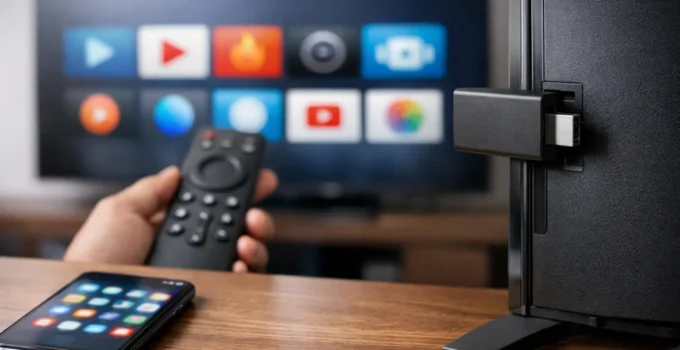
A Fire TV Stick can do much more than play the services shown on its home screen. Once you know how to install apps on Fire TV Stick, you can add streaming platforms, music services, fitness tools, news apps, and useful utilities that fit the way you watch. The simplest route is Amazon’s Appstore, but there are a few details worth knowing before you start.
Most apps are installed in seconds, provided your Fire TV Stick has an internet connection, enough free storage, and is signed in to the correct Amazon account. If an app does not appear in search, it may be unavailable in your country, unsupported on Fire TV, or listed under a slightly different name.
How to Install Apps on Fire TV Stick From the Appstore
The Amazon Appstore is the best starting point for nearly everyone. Apps from the store are checked for Fire TV compatibility, receive updates automatically by default, and do not require changing any security settings.
From the Fire TV home screen, select the Find icon, then choose Search. Use the on-screen keyboard to enter the app name. If typing with the remote feels slow, the Fire TV mobile app can make searching easier because it lets you enter text from your phone.
Choose the app from the search results and open its details page. Select Get or the shopping cart icon if it is free. If the app costs money, confirm the price before purchasing. Fire TV will download and install it automatically. When the button changes to Open, the app is ready to use.
You can also browse categories from the Appstore rather than searching for a specific title. This is useful when you are looking for a new weather app, live TV service, or music player but have not settled on one option. Check the description, ratings, screenshots, and whether a subscription is required. A free download does not always mean the service itself is free.
Finding an App After Installation
Newly installed apps do not always appear in the first row of the home screen. To find them, go to the Apps area from the Fire TV home screen and select Your Apps and Channels. You may need to choose See All.
To move an app closer to the front, highlight it, press the Menu button on the remote, and choose Move. Put the apps you use most often in the first row to avoid searching through a long library every time you turn on the TV.
Check Storage Before You Add More Apps
Fire TV Stick models have limited internal storage, and streaming apps can grow over time as they save data and updates. When storage is nearly full, downloads may fail, apps may open slowly, or Fire TV may show an error without clearly explaining why.
Open Settings, select My Fire TV, then About, and choose Storage to see how much space remains. The wording can vary slightly by Fire OS version. If space is low, remove apps you no longer use from the Apps menu, or go to Settings, Applications, Manage Installed Applications, select an app, and choose Uninstall.
Clearing an app’s cache can also free some space. In the same Manage Installed Applications menu, select the app and choose Clear Cache. This removes temporary files but usually keeps your sign-in and settings. Clear Data is different: it resets the app, so you will probably need to sign in again. Use it when an app is misbehaving, not as routine maintenance.
How to Update Fire TV Stick Apps
Apps installed through the Amazon Appstore normally update in the background. To confirm that automatic updates are enabled, open Settings, select Applications, then Appstore, and make sure Automatic Updates is turned on.
Keeping apps updated matters for more than new features. Updates often fix video playback problems, improve compatibility with newer Fire OS versions, and address security issues. If an app has stopped working after a Fire TV update, first check for an app update, then restart the Fire TV Stick by going to Settings, My Fire TV, and Restart.
There is one trade-off with automatic updates. A redesigned app can sometimes change its layout or remove a feature you liked. For most people, automatic updates remain the safer and less frustrating choice. Turning them off means you will need to remember to check apps manually.
Installing Apps Not Listed in the Amazon Appstore
Some legitimate apps are not available in every Amazon Appstore region, while others are distributed directly by their developers as Android APK files. Installing an APK is commonly called sideloading. It can be useful, but it needs more care than a normal Appstore installation.
First, confirm that the developer actually supports Fire TV. An Android app made only for phones may install but be difficult to control with the Fire TV remote. It may require touch input, display in a narrow phone-sized layout, or fail to play video correctly on a television.
Only download an APK from the app developer’s official distribution source. Avoid random download sites, modified versions of popular apps, and files advertised as “premium” or “unlocked.” Those files can contain unwanted software, request excessive permissions, or simply fail to update. If an app is available through the Amazon Appstore in your region, that remains the better option.
Enable APK Installation Carefully
On recent Fire TV software, the permission to install apps from outside the Appstore is controlled per app. Go to Settings, My Fire TV, Developer Options, Install Unknown Apps, then turn on permission only for the app you use to download or transfer the APK.
If Developer Options is not visible, go to Settings, My Fire TV, About, highlight your Fire TV device name, and press the remote’s Select button seven times. Fire TV will display a message confirming that developer options have been enabled. Return to the My Fire TV menu to find it.
After you have installed the app you need, turn that permission back off. This small step reduces the chance of accidentally installing a file later. It is also smart to delete the APK installation file after the app is installed, since it takes up valuable storage and is no longer needed.
Fix Common Fire TV Stick App Installation Problems
When an install fails, start with the simple checks. Confirm that your Wi-Fi connection works by opening an existing streaming app. Then restart the Fire TV Stick and try the download again. A restart clears temporary system issues without deleting your apps.
If Fire TV says an app is unavailable, check the country or region associated with your Amazon account. App catalogs differ by location because streaming rights and local service availability differ. Changing an account region can affect other Amazon services, so do not make that change solely to chase one app without understanding the wider impact.
An app that downloads but will not open may need an update, more storage, or a cache reset. Go to Manage Installed Applications, select the app, choose Force Stop, then Clear Cache, and launch it again. If that does not help, uninstall and reinstall the Appstore version. For sideloaded apps, check whether a newer Fire TV-compatible version is available from the developer.
Choose Apps With Privacy in Mind
Before installing a new app, think about what it needs to do. A streaming app may need network access and an account login, but a basic utility should not need unusual permissions or ask for unrelated personal information. Read the privacy information and subscription terms before creating an account, especially for free apps that rely on advertising.
It also helps to review your installed apps every few months. Remove services you no longer use, cancel subscriptions you do not want, and keep your Fire TV software updated through Settings, My Fire TV, About, Check for Updates. A cleaner app library is easier to navigate and gives you fewer accounts to manage.
The best approach is simple: use the Amazon Appstore for everyday installs, treat APKs as an exception, and keep only the apps that genuinely improve your TV setup. That gives you more choice without turning your Fire TV Stick into a source of storage, security, or troubleshooting headaches.