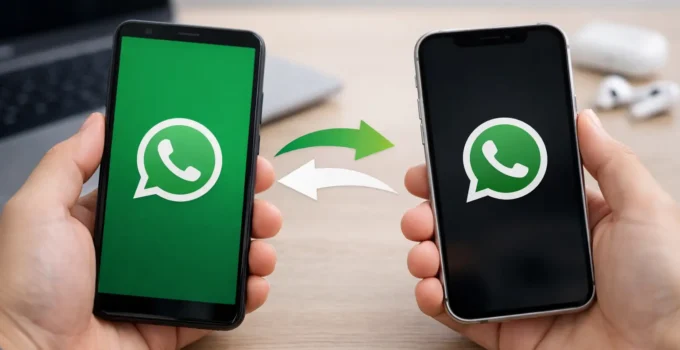
Moving from an Android phone to an iPhone should not mean leaving years of WhatsApp conversations behind. To transfer WhatsApp from Android to iPhone, the safest supported option is Apple’s Move to iOS app, used while setting up a new or erased iPhone. It can bring over your chat history and media, but a few requirements matter before you begin.
The biggest catch is timing: this transfer is designed for an iPhone that has not been fully set up yet. If you have already reached the Home Screen and started using the iPhone, you will usually need to erase it and begin setup again to use the official method.
What You Need Before You Start
Update WhatsApp on your Android phone and install the latest version of Move to iOS from the Google Play Store. Your iPhone should also be updated to a recent version of iOS and have enough free storage for the WhatsApp data coming from Android.
Keep both phones charged, or connect them to power. You also need to use the same phone number on the iPhone that you used for WhatsApp on Android. Changing your number during the move adds another step and can make troubleshooting harder, so it is best to complete the transfer first.
Your Android phone and iPhone should stay close together for the whole process. Move to iOS creates a temporary private Wi-Fi connection between the devices. Do not switch apps, take calls, or let either phone go to sleep while data is transferring.
WhatsApp says the official migration can transfer your personal messages, group chats, photos, videos, profile information, and many app settings. Call history and peer-to-peer payment messages do not transfer. Your WhatsApp display name may also need to be set again after you sign in on the iPhone.
How to Transfer WhatsApp Android to iPhone
Start with the iPhone. If it is new or has been erased, turn it on and follow the setup screens until you reach the Transfer Your Apps & Data page. Choose From Android.
On the Android phone, open Move to iOS and follow the on-screen instructions. The iPhone will show a one-time code. Enter that code in Move to iOS on Android to pair the phones.
When you reach the data selection screen on Android, select WhatsApp. Depending on your phone and app version, WhatsApp may open and ask you to tap Start to prepare your chats for transfer. This step packages your chat data for migration and signs you out of WhatsApp on the Android device.
After WhatsApp finishes preparing the data, return to Move to iOS and continue. Leave both devices alone until the iPhone reports that the transfer is complete. The transfer can take a while if you have years of chats, lots of videos, or a crowded camera roll. The time estimate on screen may change during the process.
Finish setting up the iPhone. Then install WhatsApp from the App Store if it is not already present, open it, and sign in with the same phone number used on Android. WhatsApp should detect the transferred data and offer to import it. Tap Start and wait for the import to finish before opening chats or changing settings.
Your messages may appear before all photos and videos finish organizing. That is normal. Keep the iPhone connected to Wi-Fi and power for a while if your media library is large.
Why the iPhone Must Be New or Erased
The Move to iOS process transfers data during Apple’s setup flow, not as a normal app-to-app copy after setup. This protects the iPhone’s existing data structure and helps prevent duplicate messages or incomplete imports.
If you have already configured the iPhone, first decide whether resetting it is worth the inconvenience. If it only contains a few new photos or downloaded apps, back up anything you need and erase the iPhone through Settings. Then repeat setup and choose From Android at the transfer screen.
If the iPhone already contains important local data that is not backed up, do not erase it until that data is safely saved. There is no official WhatsApp option to merge an Android chat archive into an iPhone that is already in use.
What to Do if the Transfer Fails
A failed transfer is frustrating, but it is usually caused by a connection, storage, or setup issue rather than lost WhatsApp data. First, leave WhatsApp installed on the Android phone and avoid deleting anything until you have confirmed that your chats are visible on the iPhone.
Check that both phones have current software, are unlocked, and have enough available storage. Restart both devices, then begin again. On Android, turn off mobile data temporarily if the phone keeps abandoning the temporary Wi-Fi connection created by Move to iOS. Some Android phones may warn that the Wi-Fi network has no internet access. Stay connected anyway because that local connection is how the phones communicate.
If WhatsApp does not appear as an option in Move to iOS, update WhatsApp and Move to iOS, then restart the Android phone. If the iPhone does not offer the WhatsApp import after setup, confirm that you are registering exactly the same phone number. Also make sure you completed the Move to iOS transfer rather than simply installing WhatsApp on the iPhone.
Large video collections are another common problem. Free up storage on the iPhone before trying again, and consider removing unwanted WhatsApp videos from Android first if you do not need to keep them. This can make the transfer faster and reduce the chance of running out of space.
Can You Transfer WhatsApp Without Resetting the iPhone?
Not through WhatsApp’s standard Android-to-iPhone migration method. Some third-party desktop tools claim to move chats to an already configured iPhone, but they require access to private messages and can be unreliable after WhatsApp or iOS updates. They may also involve paid subscriptions, incomplete media transfers, or account verification problems.
For most people, resetting a newly configured iPhone and using Move to iOS is the better choice. It is free, supported by Apple and WhatsApp, and does not require handing your chat archive to another service.
If you only need to keep a record of a specific conversation, WhatsApp on Android lets you export an individual chat with or without media. An exported chat is useful as a readable archive, but it cannot be imported into WhatsApp on iPhone as a live conversation.
Back Up WhatsApp After the Move
Once your chats look correct on the iPhone, create a fresh WhatsApp backup to iCloud. Open WhatsApp, go to Settings, then Chats, then Chat Backup. Choose Back Up Now and wait for it to complete on Wi-Fi.
This new backup matters because Android WhatsApp backups and iPhone WhatsApp backups use different cloud systems. Your former Google Drive backup is not a replacement for an iCloud backup on the iPhone. Keep the Android phone untouched until you have checked your important chats, recent photos, and group conversations on the new device.
Give the migration time and verify the results before wiping or selling your Android phone. A careful transfer is far easier than trying to recover a missing conversation after the old device is gone.