Updated November 7, 2026
Some Galaxy phones are losing Wi-Fi, mobile data or their physical SIM card after the One UI 9 update. Owners of the Galaxy S24, Z Fold 7, A56 and other models have reported it on Samsung’s own forums since mid-October, and tech sites picked it up on November 5. Samsung has not named a cause or a fix yet. If your phone is affected, this guide walks through what owners report, what Samsung’s support pages say to try, and the order to try it in.
What we know
- The reports started after the One UI 9 (Android 17) update, which Samsung began rolling out to the Galaxy S26 series on September 16 and has been extending to older phones since.
- Three separate symptoms come up: home Wi-Fi that drops every few hours with a “Failed to connect” message, mobile data that stops working while Wi-Fi still works, and a “No SIM card” error for a physical SIM.
- Models named in the threads include the Galaxy S24, S24 Ultra, S25, S26 Ultra, S23 Ultra, Z Fold 7, A56, A36, A52s and A16, on both US carrier and international models.
- A Samsung community moderator has suggested Safe mode, contacting your carrier and, as a last resort, a factory reset. Several owners say even the factory reset did not help.
What we don’t know yet
- How many phones are affected. Most people who installed One UI 9 report no problem.
- Whether the three symptoms share one cause or are separate bugs.
- When a fix will ship. Samsung has not announced one.
Which Galaxy Phones Have One UI 9 Wi-Fi, Data or SIM Problems?
The longest thread is on Samsung’s US community forum, opened on October 13 by a Galaxy S24 owner whose mobile data died overnight after the update. Restarting, toggling Airplane mode, resetting the mobile network and APN settings, and switching the SIM off and on did nothing. The phone only worked on Wi-Fi. Owners of the S26 Ultra, A16 and A17 replied with the same symptom.
A second thread from October 21 covers home Wi-Fi. Galaxy S24, S24 Ultra, S25 Ultra and Z Fold 7 owners describe a phone that joins the network after a restart, then shows “Connection failed” a few hours later. One S24 Ultra owner found the phone connects on 2.4 GHz but refuses the 5 GHz band. A Z Fold 7 owner on T-Mobile sees Wi-Fi Calling error 81 whenever the phone leaves and rejoins the network.
The SIM reports are the most serious. An S23 Ultra owner says the phone shows “No SIM card” about 20 seconds after the tray goes in, while the eSIM keeps working. A new SIM, a network reset and a full factory reset changed nothing. Android Headlines and TechRepublic add the Galaxy A56, A36 and A52s to the list of phones that stopped seeing a physical SIM. Android Authority was the first site to pull the reports together on November 5.
If your phone shows “Not registered on network” instead, that is a different error with its own fixes. Our guide to the Android network registration error covers it.
Do the Quick Checks First
These take two minutes and clear most temporary glitches. Samsung lists them at the top of its own Wi-Fi and mobile network troubleshooting pages.
- Restart the phone. Swipe down from the top right, tap the Power icon, then Restart. If the phone is frozen, hold the Side and Volume down keys for more than 7 seconds.
- Toggle Airplane mode on, wait ten seconds, and turn it off. Several owners say this brings data back for a while.
- Check for another update. Go to Settings > Software update > Check for updates. Samsung ships monthly patches, and a later build may already contain a fix for your model.
- Check Mobile data is on. Swipe down and look at the Mobile data tile. It is an obvious one, but Samsung lists it first for a reason.
If the problem comes back within hours, move on to the section that matches your symptom.
Wi-Fi Keeps Disconnecting After One UI 9: What to Try
Work through these in order. Steps 1 to 4 come from Samsung’s Wi-Fi troubleshooting page; steps 5 and 6 are workarounds owners report in the forums.
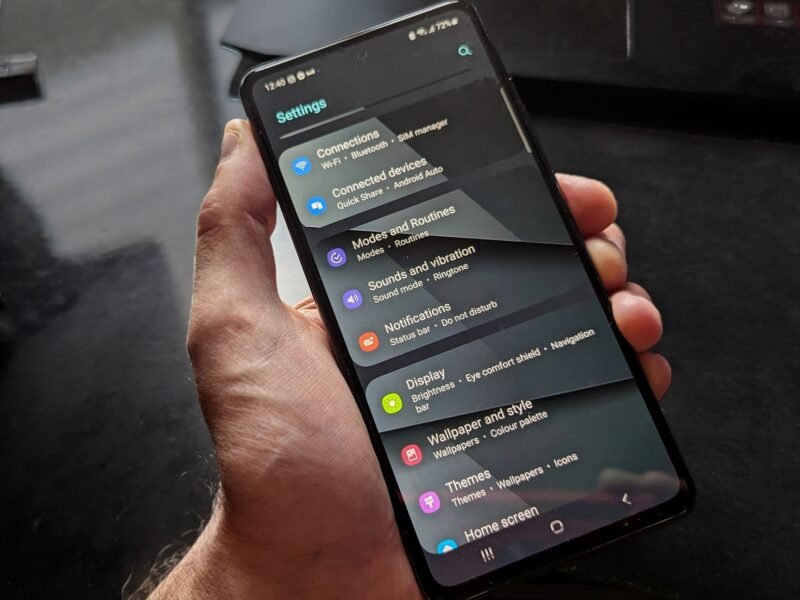
- Forget and rejoin the network. Open Settings > Connections > Wi-Fi, press and hold your network, tap Forget network, then select it again and enter the password.
- Test in Safe mode. Swipe down, tap the Power icon, then press and hold Power off until Safe mode appears and tap it. Safe mode runs no third-party apps. If Wi-Fi stays stable there, a recently updated app is the culprit; restart normally and uninstall apps in the order they were installed. If Wi-Fi still drops in Safe mode, apps are not the cause.
- Reset Wi-Fi and Bluetooth settings. Go to Settings > General management > Reset > Reset Wi-Fi and Bluetooth settings, then tap Reset settings. This keeps your apps and data but wipes saved networks and paired accessories, so have your Wi-Fi password ready.
- Restart the router and check its firmware. If other devices in the house also drop, the router is the problem, not the phone.
- Join the 2.4 GHz band. Owners who cannot hold a 5 GHz connection report that the slower 2.4 GHz network stays up. If your router broadcasts both under one name, its settings page usually lets you split them.
- Turn off Wi-Fi 7 in Developer options. Some owners of newer flagships say disabling Wi-Fi 7 mode under Settings > Developer options > Connectivity Labs stopped the drops; one S24 Ultra owner says it made no difference. Many mid-range phones do not have the toggle at all. Treat this as a workaround to test, not a fix.
If none of this holds, run Samsung’s own diagnostic: open Samsung Members > Support > Get started and select the Wi-Fi test. The result goes into any error report you send later.
Mobile Data Not Working After the One UI 9 Update
This is the symptom with the most “me too” replies. Samsung’s mobile network troubleshooting page gives the official steps; the last two come from the forum threads.
- Reset mobile network settings. Go to Settings > General management > Reset > Reset mobile network settings, tap Reset settings, then Reset. Samsung warns this cannot be undone and that some carriers need to reactivate the connection afterwards.
- Reset the APN. Open Settings > Connections > Mobile networks > Access Point Names, tap the three dots, then Reset to default. A wrong access point name blocks data even with full signal bars.
- Change the network mode. In Settings > Connections > Mobile networks > Network mode, try switching from 5G to LTE, or the other way round, and see whether data returns.
- Turn off VoLTE as a test. A Galaxy S25 owner whose data icon kept flickering on and off says turning off VoLTE under Settings > Connections > Mobile networks fixed it. The trade-off is that calls fall back to the older voice network, and you lose Wi-Fi calling on some carriers.
- Ask your carrier to re-provision the line. Samsung’s community moderator points out that a major OS update can require a provisioning update or a fresh SIM profile from your network. Tell the carrier the phone just moved to One UI 9 and ask them to push a new profile.
If apps also crash when you open them, as one S26 Ultra owner reported, that usually clears up separately once the phone finishes optimizing after the update. Our guide to stopping Android apps from crashing has the cache and permission fixes. Samsung Health has its own separate bug this month: if your old step counts read zero, see why Samsung Health step history is missing and where the numbers still are.
“No SIM Card” on a Galaxy After One UI 9
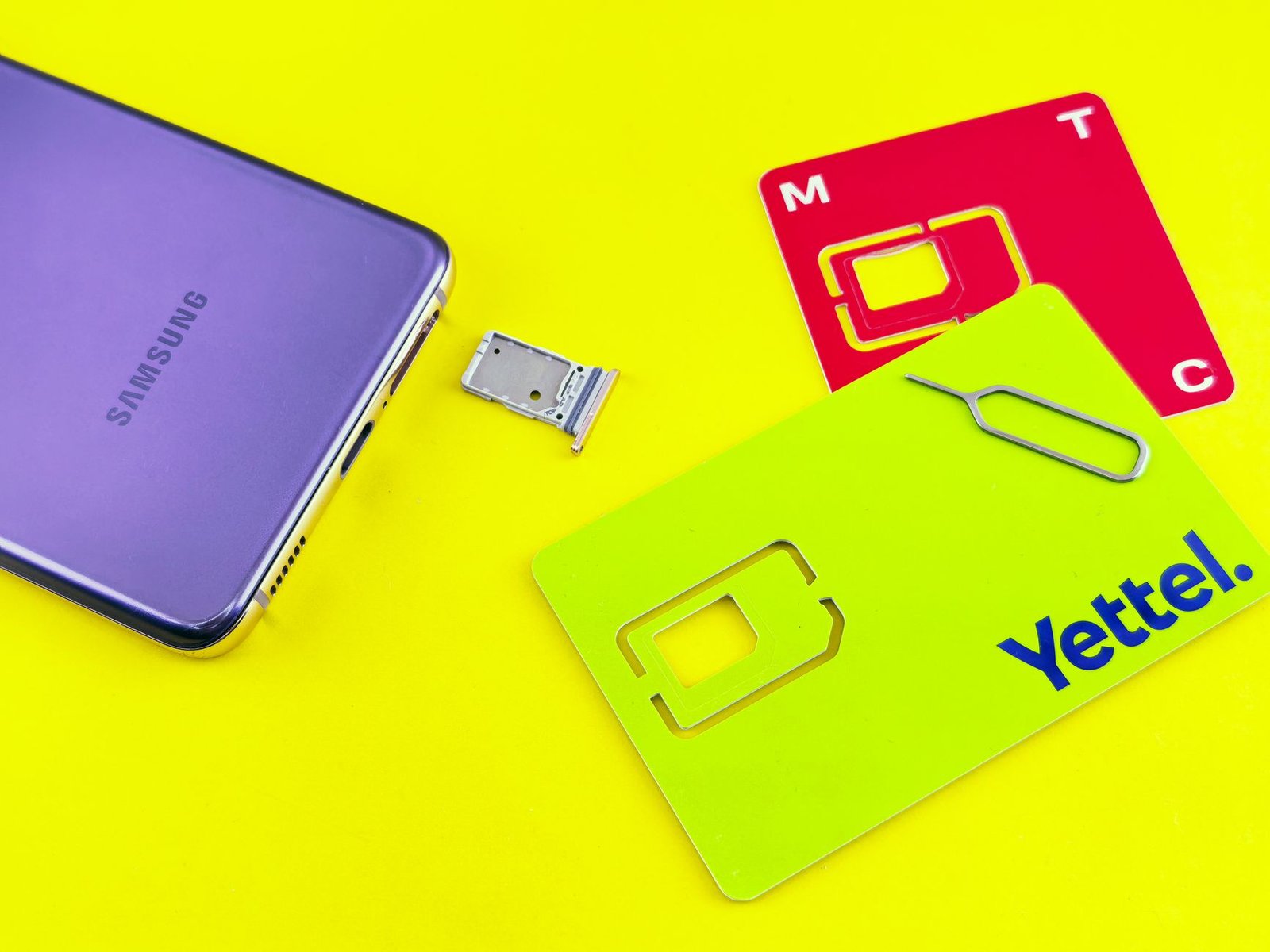
Start with the physical checks, because a bent tray or a dirty contact produces the same error as a software bug. Samsung’s “No SIM card” support page lists them in this order.
- Power off and inspect the SIM. Eject the tray, look for scratches or stains on the card, wipe the card and tray with a dry cloth, and reinsert the card squarely. Do not force the tray.
- Reset mobile network settings as described in the data section above.
- Try the SIM in another phone. If a second phone cannot read it either, the card is damaged and your carrier will replace it. If the second phone reads it fine, the fault is on your Galaxy.
- Try a different SIM slot on dual-SIM models, and note whether the eSIM still works. Owners say the eSIM usually does, which points at the software rather than the modem itself.
- Ask the carrier for a replacement SIM anyway if the card is old. It is free with most networks and rules out one variable before you talk to Samsung.
One point for dual-SIM owners: the S23 Ultra report says inserting the physical SIM also made the eSIM unstable. If you need the phone to work today, pulling the physical SIM and running on eSIM alone may be the most reliable short-term setup.
Should You Factory Reset for the One UI 9 Problems?
Only after everything above, and only with a full backup. Samsung’s factory reset guide says the reset deletes all personal data, requires your Samsung account password, and needs any encrypted microSD card decrypted first. The path is Settings > General management > Reset > Factory data reset > Reset > Delete all.
Be realistic about the odds. At least two owners in the data thread and the S23 Ultra SIM reporter say a factory reset changed nothing, and Android Headlines reports the same. A reset is still worth one try if your phone is your only line, because it rules out every app and leftover setting. If it fails, you have confirmed the problem is in the update itself, which is useful when you contact Samsung.
There is no official way to go back to One UI 8.5. Samsung’s support pages describe no downgrade path, and phones that already run One UI 9 can only move forward to a newer build.
Report It to Samsung So the Bug Gets Logged
Forum posts help other owners, but an error report with system logs is what reaches Samsung’s engineers. Samsung’s error report page gives the steps:
- Touch and hold the Samsung Members icon and tap Error reports. Or open the app, go to the Support tab and tap Error reports under Send feedback.
- Choose the category closest to your problem (Wi-Fi, Mobile network or SIM).
- Describe what happens, when it started and what you have already tried. Attach a screenshot of the error with the paper clip icon.
- Turn on Send system log data. Without the log, Samsung cannot see what the modem or Wi-Fi chip was doing.
- Tap the Send arrow. Replies appear under Check feedback you’ve sent.
Send the report soon after a drop happens, while the relevant log is still on the phone. One UI 9 also added a Warranty and Care entry in Settings, which Samsung’s September announcement says can run self-diagnostics and book a service appointment, if the phone is linked to your Samsung account.
Still Waiting for the Update? Here Is the Sensible Move
If your Galaxy has not offered One UI 9 yet, there is no harm in waiting a few weeks for Samsung to respond to these reports. The update appears under Settings > Software update. Some owners say it installed overnight on its own, so look in that menu for the automatic update option and switch it off if you want to choose the moment. Keep taking the monthly security patches for your current One UI version in the meantime. Our walkthrough of updating a Samsung Galaxy safely explains how to check what an update contains before you accept it. Pixel owners are in a similar holding pattern this month, because Google’s November 2026 Pixel update has not shipped yet.
If you rely on one phone for work, a new One UI version is always worth a short wait. OnePlus owners face a similar call with the Android 17 update that replaces OxygenOS with ColorOS 17, which is optional and ships with a rollback. The same update also brought reports of faster battery drain on some models and of Android Auto failing to connect, which Google says it is reviewing. None of those are reasons to panic, but together they argue for letting the first wave of owners find the bugs.
Quick Answers
Is the One UI 9 update causing Wi-Fi problems on Galaxy phones? Owners of the Galaxy S24, S24 Ultra, S25 Ultra and Z Fold 7 report home Wi-Fi dropping with a “Connection failed” message a few hours after each restart, starting right after the One UI 9 update. Samsung has not confirmed a cause. Forgetting the network, resetting Wi-Fi and Bluetooth settings, and using the 2.4 GHz band help some owners.
Why does my Galaxy say “No SIM card” after updating? Several Galaxy S23 Ultra, A56, A36 and A52s owners report the physical SIM dropping out after One UI 9 while an eSIM keeps working. Clean and reseat the SIM, reset mobile network settings, and test the card in another phone. If it works elsewhere, send Samsung an error report with system logs.
Will a factory reset fix One UI 9 mobile data problems? Not reliably. Multiple owners say their data stayed dead after a full reset. Try resetting mobile network settings, resetting the APN, changing the network mode and asking your carrier to re-provision the line first. A reset is the last step, and only with a backup.
Can I go back to One UI 8.5? No. Samsung provides no supported downgrade, and its support pages list no way to install an older One UI version over a newer one.
Has Samsung released a fix for the One UI 9 connectivity bugs? As of November 7, 2026, no. Samsung’s community moderators are collecting reports and suggesting Safe mode, carrier provisioning and a factory reset. Keep checking Settings > Software update, because fixes for this kind of bug usually arrive inside a monthly patch.
Does the problem affect every phone on One UI 9? No. Most owners who installed the update report no connectivity trouble. The reports cluster around specific models and carriers, and the share of affected phones is unknown.
Sources: Samsung’s One UI 9 rollout announcement, Samsung’s support pages for Wi-Fi, mobile network, SIM, Safe mode, factory reset and error reports, the Samsung Community threads linked above, and the November 5 and 6 reports from Android Authority, Android Headlines and TechRepublic. Steps and menu paths were checked against Samsung’s support pages on November 7, 2026.